Ads 468x60px

Labels

Showing posts with label Tech Help. Show all posts

Thursday, 11 December 2014

Using Office 365 on iPad

Steps:

  1. Download the 7 office apps from the app store (be sure to download 2013 versions)
  2. Login using your Bishops email address.
  3. Enter special login information for OWA, OneDrive, and Lync
1. Go into the app store 

Download all of the following 7 Microsoft programs:

(You may want to put them into a folder)
  • Excel
  • PowerPoint
  • OneNote
  • Word
  • Lync 2013
  • OWA (Outlook Web App)
  • OneDrive (*must be business version)


2. For most Office 365 apps you simply need to sign in using your Bishops email address.


At some point you may need to select a work account rather than a ‘Microsoft account’

3. The rest of the apps require other additional information:

Lync:
Show advanced options and enter email address


Click HTTP Proxy, and enter domain, username as such:


OWA:

This message will pop up :

- Click advanced

Fill in the information as so:
  • User name must be your email address as well.
  • Do not enter in anything for ‘Domain’
  • ’Server’ must be: outlook.office365.com
An example is shown on the next page:

OneDrive:

Firstly make sure that you downloaded OneDrive for business and not the other version of OneDrive

Next you need to click ‘Show Advanced Options’ and then type your password and the following as the ‘SharePoint Server URL’: https://diocesancollege.sharepoint.com

Example:


That’s it! Enjoy Office 365 for iPad – it’s likely to be more useful than one might expect!


Wednesday, 19 February 2014

Setting up your Bishops email account on your iPad

1) Go to 'settings' and then click on 'mail, contacts, calendars'


2) Click on 'add account' and then select 'Exchange'


3) Type in your Bishops email address and password


4) Click 'next'


5) Details for 'server' must be "mail.bishops.org.za", domain must be set as "dcp-domain" and the username must be your Bishops username, not your email address, along with your Bishops password.


6) Once you have filled these in, click 'next'


7) Make sure all of the following settings are on and then click 'save'


8) A new account has appeared named 'Exchange', click on it


9) Choose how much data you would like to import, for example if you want one week's worth of past data, then you must set 'mail days to sync' to 1 week


10) On the home screen, push the 'mail' button


11) Wait for email data to be imported and then check that your email is working


Follow the same steps as above in order to set up additional Mail accounts such as a Gmail account via Google.

Monday, 10 February 2014

Connecting to the Bishops' Network


1) Turn your WiFi setting ON in Settings > WiFi


2) Select 'Bishops WiFi' to configure settings


3) Do NOT enter any DHCP or IP settings


4) Under 'HTTP PROXY', select 'Auto' and enter the URL http://intranet/wpad.dat


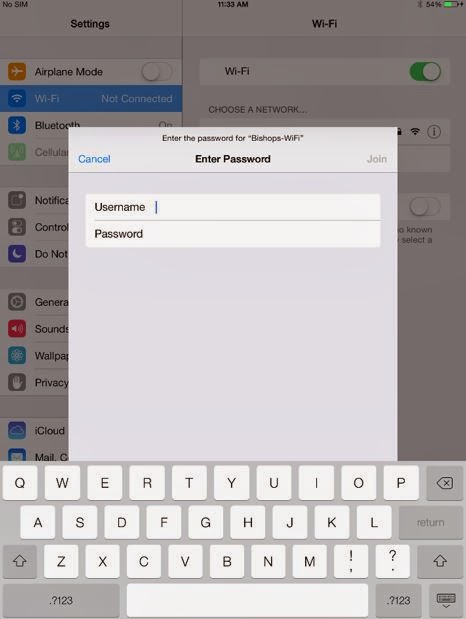
5) Upon exiting the Wi-Fi Settings page, an authentication prompt appears. Enter your Bishops username and password.


6) A certification prompt will appear. Select 'Accept'


7) After a short period of loading, a tick will appear next to 'Bishops WiFi' as well as the Wifi icon. This indicates that you are connected to the Bishops' Network.


8) If you double tap on 'Bishops-WiFi', you will notice that all the DHCP settings have been automatically set.

Wednesday, 22 May 2013

Changing App Stores

Changing App Store is easy. If you wish to swop between USA, SA or any other store you can do by going to "settings",  "iTunes & app stores".  Then click on your apple id and log in with your apple password. After that it will give you the country you currently purchasing through. If you do want to buy through the US store chat to me about purchasing vouchers.

Wednesday, 15 May 2013

Explain Everything Manual

The teacher and inspiration behind the wonderful Explain Everything app has kindly given permission to distribute the iBook Author copy of their manual here in South Africa free of charge. To access the book for download please go here, and follow the instructions. It is a large book (88MB) and will take some time to download. I suggest you download the file on your iPad so you can send it straight into iBooks.

 Alan Goldberg

Tuesday, 16 April 2013

Taking Screen Shots

This is a brilliant tool. Press the on/off and menu button at the same time. It takes a screen shot and saves it directly to your photos.

If you want to email this you can  either do it directly from your photo's or draft your email first, hold down the paste button and it gives you the option to insert a photo. Select the screen shot from the camera roll. And simply send.

Useful if you need to show something rather than say it !


Thursday, 11 April 2013

Word and Excel and PowerPoint

Quickoffice Pro HD: A number of staff have asked me what I use for writing documents and for doing spreadsheet type work. To be honest, I don't really like using my iPad to write big documents (I'll use my computer for that) but it is nice to be able to edit the odd document or spreadsheet. Unfortunately this app isn't free but it does the job well and you get 3 apps in one.

Tuesday, 9 April 2013

iPad tips


iPad typing tips


Turn down the brightness to save battery life

To get the most out of your iPad's battery, you can lessen the brightness of the display. Go to your settings and choose "Brightness & Wallpaper". Move the slider to something that is comfortable for you.

Finger gestures

This article explains how to use different finger swipes on your iPad.