
Saturday, 22 August 2015
Friday, 21 August 2015
Social Media

We all enjoyed and benefited from a great talk by Emma Sadleir, a social medial lawyer. I'm sure that more that a few of us were also quite terrified by what she had to say! Our activity on the Internet leaves a very long-lasting footprint!
Be mindful of what you post on the Internet. Remember - if you wouldn't say something to a person face to face (or show something to a person face to face), it is definitely a bad idea to post it on-line.
Here are a few links to some useful articles on managing children's social media usage.

Wednesday, 5 August 2015
Office 365

Dear Parents
As of 2015, Bishops is making use of the Office 365
Educational Package. This means that your son’s mailbox is now in the cloud and
not hosted on a Bishops server. Your son’s email should connect seamlessly from
wherever he is in the world.
The benefits of moving to Office 365 are:
·
The
online Microsoft Office Suite allows your son to access his email, calendars
and OneDrive files and folders using any device, anywhere in the world
·
Your
son is able to download and install, at no additional cost, a local version of
the Microsoft Office Application Suite, called Office Pro Plus on up to 5
different devices
·
Office
Pro Plus is available for Android and Apple PCs, tablets and phones
·
Your
son has 1TB of OneDrive storage space available for his personal use; At this
stage Bishops still requires boys to save their schoolwork onto the Bishops
network
Your son’s Office 365 login details
are his Bishops email address and his school password.
For your convenience, here is some 'How to...' Office 365 documentation:
For your convenience, here is some 'How to...' Office 365 documentation:
Friday, 15 May 2015

Thursday, 14 May 2015
ShowMe Interactive Whiteboard

ShowMe
- turns your iPad into an interactive whiteboard! You can record voice-overs
and share them online. It’s an amazingly simple app that anyone can use, no
matter how young or old!
Wednesday, 13 May 2015
Kidspiration Maps Lite
 kidspiration maps - see how learners use this colourful and constructive app to create visual maps that build reading, writing and thinking skills.
Tuesday, 17 February 2015
Adding your Office 365 mail account to your iPad
For some iPads, adding your Office 365 mail account is easier than for other iPads. If you are struggling, make sure that you are following this process exactly - every step is important!
1) Firstly make sure your Wi-Fi is working and that you can access the internet (see previous prep banter tutorials for help with this)
2) Go to: *Settings

*Mail, Contacts, Calendars

*Remove any other Bishops accounts
*Click add account
3) Enter your details as shown in the example below:

Good luck!
Wednesday, 4 February 2015
Useful Apps
MindShift has published some useful apps and a brief description of them. Please click here to visit the page.

Thursday, 11 December 2014
Using Office 365 on iPad
Steps:
- Download the 7 office apps from the app store (be sure to download 2013 versions)
- Login using your Bishops email address.
- Enter special login information for OWA, OneDrive, and Lync


Download all of the following 7 Microsoft programs:
(You may want to put them into a folder)
- Excel
- PowerPoint
- OneNote
- Word
- Lync 2013
- OWA (Outlook Web App)
- OneDrive (*must be business version)


At some point you may need to select a work account rather than a ‘Microsoft account’

3. The rest of the apps require other additional information:
Lync: Show advanced options and enter email address

Click HTTP Proxy, and enter domain, username as such:

OWA:
This message will pop up :
- Click advanced
Fill in the information as so:
- User name must be your email address as well.
- Do not enter in anything for ‘Domain’
- ’Server’ must be: outlook.office365.com
An example is shown on the next page:

OneDrive:
Firstly make sure that you downloaded OneDrive for business and not the other version of OneDrive

Example:

That’s it! Enjoy Office 365 for iPad – it’s likely to be more useful than one might expect!


Wednesday, 3 December 2014
RWT Timeline by International Reading Association

RWT Timeline
Created with classroom use in mind, Timeline allows students to create a graphical representation of an event or process by displaying items sequentially along a line. Timelines can be organized by time of day, date, or event, and the tool allows users to create a label with short or long descriptive text. Adding an image for each label makes a timeline more visually appealing.
Created with classroom use in mind, Timeline allows students to create a graphical representation of an event or process by displaying items sequentially along a line. Timelines can be organized by time of day, date, or event, and the tool allows users to create a label with short or long descriptive text. Adding an image for each label makes a timeline more visually appealing.
Add, drag, and rearrange items as needed. Saving capability allows students to return to their work and make revisions, and they can share their final work via e-mail.
Users can send their finished timeline to their device’s camera roll or email it as a .pdf file to friends and family.
Wednesday, 6 August 2014
Laws and ethics of using copyrighted images
We all like to use images in our presentations and projects to make them more visually appealing. We need to make sure that we correctly reference any images belonging to someone else and that we use the images according to legal and ethical standards. Follow these links to find out more about what you can and can't do with images: copyright, fair use, creative commons, and public domain.
created a useful guide and infographic to help explain the do's and don'ts.

Wednesday, 14 May 2014
Flipping the classroom
Flipping the classroom is the new buzz word in education but I prefer rather to use a combination of electronic material to create a blended approach that maximizes the value of teacher contact time. In this way we use technology to support the learning and teaching process. We try to articulate the course content in a uniform way so that pupils have a one stop shop - web pages that clearly lay out the content to be covered, the activities they will be engaged in, all rubric, instructions and supporting resources.
Thursday, 27 February 2014
Cyber safety

This site is a must read for teachers and parents. Having the conversations such as suggested in the link below is a great way to promote healthy Internet habits.
http://www.educatorstechnology.com/2013/04/13-digital-citizenship-terms-teachers.html
http://www.edutopia.org/digital-generation-parents-commonsense-video
Tuesday, 25 February 2014
Free IPAD Apps for teaching - Socrative - smart response clicker
Socrative - Engage your classroom via any mobile device. In only three
minutes, you can set up a smart response clicker that involves students like
never before. By allowing them to use their phones to participate in class, you can
actively involve them. With educational games and exercises, you can engage and
assess your students with ease.
Works with almost any device with a web browser (except some types of blackberries)
Short Answer
Space Race
Exit Tickets
Quick Quiz
Multiple Choice
Polls
Simple Grading
Assessment
minutes, you can set up a smart response clicker that involves students like
never before. By allowing them to use their phones to participate in class, you can
actively involve them. With educational games and exercises, you can engage and
assess your students with ease.
Works with almost any device with a web browser (except some types of blackberries)
Short Answer
Space Race
Exit Tickets
Quick Quiz
Multiple Choice
Polls
Simple Grading
Assessment
 |
| Image taken from iTunes.com |
 |
| Image taken from iTunes.com |
Wednesday, 19 February 2014
Setting up your Bishops email account on your iPad
1) Go to 'settings' and then click on 'mail, contacts, calendars'

2) Click on 'add account' and then select 'Exchange'

3) Type in your Bishops email address and password

4) Click 'next'

5) Details for 'server' must be "mail.bishops.org.za", domain must be set as "dcp-domain" and the username must be your Bishops username, not your email address, along with your Bishops password.

6) Once you have filled these in, click 'next'

7) Make sure all of the following settings are on and then click 'save'

8) A new account has appeared named 'Exchange', click on it

9) Choose how much data you would like to import, for example if you want one week's worth of past data, then you must set 'mail days to sync' to 1 week

10) On the home screen, push the 'mail' button

11) Wait for email data to be imported and then check that your email is working

Follow the same steps as above in order to set up additional Mail accounts such as a Gmail account via Google.
Monday, 10 February 2014
Connecting to the Bishops' Network
1) Turn your WiFi setting ON in Settings > WiFi

2) Select 'Bishops WiFi' to configure settings

3) Do NOT enter any DHCP or IP settings

4) Under 'HTTP PROXY', select 'Auto' and enter the URL http://intranet/wpad.dat

5) Upon exiting the Wi-Fi Settings page, an authentication prompt appears. Enter your Bishops username and password.
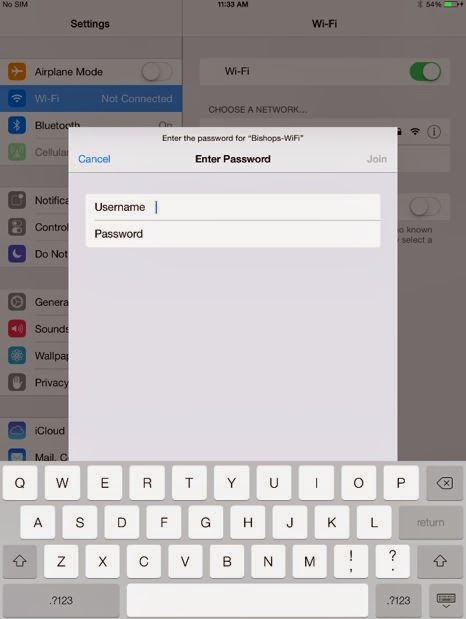
6) A certification prompt will appear. Select 'Accept'

7) After a short period of loading, a tick will appear next to 'Bishops WiFi' as well as the Wifi icon. This indicates that you are connected to the Bishops' Network.

8) If you double tap on 'Bishops-WiFi', you will notice that all the DHCP settings have been automatically set.
Wednesday, 5 February 2014
8 Safe Search Engines for children
The Internet is not without its share of safety issues and content that is inappropriate for younger children. Fortunately, there are plenty of good children-focused search tools available. This website suggests 8 safe search environments.
http://www.emergingedtech.com/2014/01/8-safe-search-engines-and-tools-for-kids/
http://www.emergingedtech.com/2014/01/8-safe-search-engines-and-tools-for-kids/
Friday, 25 October 2013


Thursday, 24 October 2013
Geoboard

Geoboard
Children can stretch bands around pegs to form line segments and polygons. They can make discoveries about perimeter, area, angles and fractions. This can be used with young children who are still doscovering properties of shapes, right up to intermediate phase children who are learning about congruence and angles.
Subscribe to:
Posts (Atom)


